


Learn how website colors affect readability, accessibility and CTA recognition, with a practical contrast audit and controlled conversion test plan.
Website colors do not directly move a page up or down in Google, but they can change how easily people read, understand and use that page. A low-contrast paragraph can make useful content feel exhausting. A button that blends into the background can hide the next step. An error message shown only in red can become invisible to some users. These are design and accessibility problems first, and they can also become conversion problems.
The practical goal is not to find a “best color for SEO.” It is to build a color system that makes content readable, actions recognizable and interface states understandable on every device. This guide explains what color can and cannot influence, how to meet key WCAG 2.2 requirements and how to test color changes without turning a design hypothesis into an unsupported ranking or conversion claim.

Do Website Colors Affect SEO?
Color is not a direct Google ranking factor. Google does not rank a page higher because its buttons are blue, its background is white or its brand uses a particular palette. Google’s own guidance on website testing says that small changes to the color, size or placement of a button can affect how users interact with a page while often having little or no effect on its search snippet or ranking.
The direct SEO answer
Changing a color value in CSS does not make content more relevant, improve crawlability or create authority. It also does not guarantee a lower bounce rate, a longer session or a better search position. Those outcomes depend on many separate factors, and behavioral changes should not be presented as proof of a ranking change.
Color can still matter to the quality of the page experience. If text is difficult to read, links are hard to recognize or a form gives unclear feedback, visitors may struggle to complete the task. Fixing that friction is valuable even when no ranking change follows.
The indirect business impact
A clear color system can help users scan headings, distinguish controls, notice a primary action and understand success or error states. Those improvements can support more completed forms, purchases, registrations or other conversions. They can also reduce avoidable accessibility barriers.
The safest way to describe this relationship is simple: color can influence usability and conversion behavior, but it does not guarantee SEO growth. Measure search performance, usability and conversions separately instead of treating one metric as proof of another.
Start With WCAG Color and Contrast Requirements
Accessibility should be the first checkpoint for any website palette. The Web Content Accessibility Guidelines (WCAG) 2.2 provide measurable criteria for text, controls and visual states. Meeting a minimum ratio is not the end of good design, but it gives teams a reliable baseline instead of asking whether a color “looks readable” on one monitor.
Text contrast
For WCAG 2.2 Level AA, normal text generally needs a contrast ratio of at least 4.5:1 against its background. Large text generally needs at least 3:1. W3C’s contrast guidance describes large text as at least 18pt regular or 14pt bold, with equivalent-size provisions for CJK fonts. Check the delivered size and weight; a prominent-looking heading does not automatically qualify.
Check body copy, headings, navigation, link text, labels, placeholders, helper text and text placed over images. Test the real rendered colors, including opacity and overlays. A color pair may pass in a design file but fail after transparency, gradients or background images are applied in the browser.
Controls, icons and focus indicators
Important non-text elements also need sufficient contrast. Under WCAG 2.2 Level AA, visual information required to identify interface components and their states generally needs a contrast ratio of at least 3:1 against adjacent colors. This can apply to input borders, checkbox states, icons and other essential graphics. W3C’s non-text contrast guidance documents exceptions, including inactive controls and unmodified browser-defined appearances. Record the applicable criterion rather than applying one ratio to every visible decoration.
Keyboard focus must remain visible as users move through links and controls. Do not remove the browser outline unless you replace it with a focus style that is at least as clear. Test the indicator against every background on which the component can appear, not only the default white page.
Do not use color as the only signal
WCAG’s Use of Color criterion requires an additional way to communicate information or prompt an action when meaning depends on color. A red border alone is not enough to explain a form error. Add an icon, a text message and programmatic error identification. A green dot alone should not be the only indication that a system is online; include a label such as “Active.”
The same principle applies to charts, pricing comparisons and links inside body text. Use labels, patterns, underlines, shapes or other visual cues so that meaning survives when a user cannot distinguish the intended colors.
How Color Influences Conversion Decisions
Color can guide attention, but it works together with copy, spacing, hierarchy, placement and user expectations. A bright button will not rescue an unclear offer, and a trustworthy palette will not fix a broken checkout. Treat color as one part of the decision environment rather than a shortcut to persuasion.
Readability reduces unnecessary effort
Visitors should not have to strain to understand the offer, product details or next step. Strong text contrast, comfortable line spacing and a predictable visual hierarchy help people process information faster. This is especially important on long articles, pricing pages and forms where users must compare several options.
Readability also affects confidence. If legal terms, delivery details or error messages appear in faint gray text, the interface can feel careless or evasive. A readable design makes important information feel intentional and available.
Visual hierarchy makes the primary action obvious
A primary CTA should be distinct from nearby cards, links and secondary buttons. Contrast is contextual: a blue button may stand out on a white page but disappear inside a blue hero section. Whitespace, size, label quality and button shape are as important as hue.
Keep the meaning of action colors consistent. If green means “continue” on one screen, it should not become a decorative badge on the next. Secondary actions can remain visible while using lower emphasis so that they do not compete with the main task.
Color expectations depend on context
Broad claims such as “blue creates trust” or “red always increases urgency” are too simple to guide a real interface. Meanings vary by culture, industry, product type, brand history and the other colors on the page. Red may signal urgency, an error, a discount or a destructive action depending on context.
Use audience research and observed behavior to form a hypothesis. Brand consistency matters because familiar visual patterns help returning users know what to expect, but consistency should not be used as a reason to preserve an inaccessible color pair.
How to Choose an Accessible Website Color Palette
A useful palette is more than a collection of attractive hex codes. It needs defined roles, sufficient contrast and predictable behavior across normal, hover, focus, active, disabled, success, warning and error states. Building those rules early is faster than fixing individual components after launch.
Assign colors by role
Define a small set of semantic roles such as page background, surface, primary text, secondary text, border, primary action, secondary action, success, warning and error. This makes the system easier to audit because every color has a job instead of being chosen independently on each page.
Record approved foreground and background pairs rather than documenting colors in isolation. A brand blue may be accessible with white text at one shade and fail at another. Designers and developers should be able to see which combinations are safe without recalculating them for every component.
Test real components, not just swatches
A contrast checker is essential, but a passing pair can still perform poorly in a real layout. Review buttons, forms, navigation, banners and cards at their actual sizes. Check text over photography, translucent overlays and gradients because these are common places for contrast to break. Review disabled states for understandable behavior too, while recording the applicable contrast exceptions for genuinely inactive controls. Do not use an inactive-control exception for an enabled input’s placeholder or helper text.
Test at browser zoom, on mobile screens and under bright and dim conditions. Use keyboard navigation and a color-vision simulator as additional checks, but do not rely on simulation alone. A short review with real users can reveal confusion that a numerical audit cannot.

A Practical Website Color Audit
A color audit should connect accessibility evidence with the tasks users need to complete. Work through representative templates rather than checking only the homepage. Include a content page, landing page, form, checkout or registration flow and any interface with important status messages.
For each finding, record the page, component, state, foreground and background, measured ratio, relevant criterion and owner. Retest the published component after the fix. A screenshot of a design file cannot confirm that the same colors survived the implementation.
| Audit area | What to check | Useful evidence |
|---|---|---|
| Text | Body copy, headings, labels, links, placeholders and text over images | Measured contrast ratio and visual review at common viewport sizes |
| Controls | Buttons, inputs, checkboxes, icons and disabled states | Non-text contrast, recognizable shape and clear labels |
| Interaction states | Hover, focus, active, selected, success, warning and error | Keyboard test and confirmation that color is not the only signal |
| Conversion path | Primary CTA visibility and competition from secondary actions | Task completion, form errors and funnel data |
| Responsive design | Mobile layouts, dark mode, responsive images and sticky elements | Device testing and screenshots from representative breakpoints |
- List the key templates and the primary task on each one.
- Inventory the foreground and background pairs used by important elements.
- Measure text and non-text contrast against the relevant WCAG criteria.
- Confirm that links, errors and status messages remain clear without color.
- Test keyboard focus and every interactive state.
- Review the same components on mobile, dark mode and responsive images.
- Prioritize failures that block reading, navigation or task completion.
A hypothetical form repair: before and after
Imagine a registration form with 16px regular helper text in #888888 on a solid #FFFFFF background. The calculated contrast is about 3.54:1, below the 4.5:1 AA threshold for normal text. Its error state also uses a red border without explaining what needs correction. This is a hypothetical component, not a measured SEOVisitor conversion case.
The team changes the helper text to #595959 on the same white background, giving a calculated ratio of about 7.00:1, and supplies a clear error message associated with the field. It then checks keyboard use, focus and the rendered colors in each theme. The ratios are rounded descriptions of these opaque sRGB pairs; real overlays or different backgrounds require new measurements.
This repair changes more than a button hue. Record it as an accessibility correction, not a color-only experiment. Whether more people finish the form remains a separate question for reliable observation or testing; no conversion increase is assumed.
How to Run a Useful CTA Color Test
Once accessibility and implementation problems are fixed, an A/B test can evaluate whether a different CTA treatment helps users complete a task. The experiment should answer a specific question, such as whether a higher-contrast primary button is easier to recognize on a product page. Both variations must meet the agreed accessibility baseline. Repair a known failure before testing alternatives rather than retaining an inaccessible control to see whether it wins commercially.
Change one material variable
Keep the CTA label, position, size, destination, offer and audience stable when color is the variable being tested. If the wording and layout also change, the result cannot be attributed to color. Confirm that analytics events and form submissions are recorded correctly before sending traffic to either variation.
Use a completed business action as the primary metric when possible, not button clicks alone. A variation can attract more clicks while producing more form abandonment or fewer purchases. Track guardrails such as error rate, mobile completion and accessibility failures.
Run the test long enough to cover normal variation
Do not stop an experiment as soon as one version briefly leads. The required duration depends on traffic, baseline conversion rate, the size of the effect and normal weekly variation. Define the hypothesis, primary metric and stopping rule before reviewing the result.
Document the dates, audience, sample, implementation and outcome. Without that information, a statement that a color “increased conversions” is only a hypothetical example. Avoid generalizing one page’s result into a universal rule for every website.
An inconclusive result is a valid outcome. If the sample cannot support a useful decision, retain the accessible treatment, document the uncertainty and review the next meaningful question. Do not repeatedly restart the test or select the most flattering device segment after seeing the results.
Use Heatmaps and Recordings as Diagnostic Evidence
Heatmaps and session recordings can help locate friction. Microsoft’s Clarity heatmap documentation describes aggregated click and scroll evidence; that evidence does not explain every visitor’s reason for acting. They may show that users overlook a control, repeatedly click a non-interactive element, stop before reaching a form or struggle with a mobile layout. These observations are useful for creating a testable hypothesis.
They do not prove why every user behaved that way, and a colorful heatmap is not a conversion result. Combine behavioral evidence with analytics, user feedback and a controlled change. If recordings suggest that a button is missed, first check its label, placement, contrast and surrounding hierarchy before assuming hue is the only cause.

Mobile, Dark Mode and Interface States
Color decisions must survive more than the default desktop screen. Responsive layouts can move text over a different part of an image, place a button inside a similarly colored card or compress spacing until two actions compete. Test the actual breakpoints used by visitors rather than scaling a desktop screenshot.
Mobile and touch interfaces
On a small screen, hierarchy and target recognition become more important because fewer elements are visible at once. Make sure the primary action remains distinct, labels are readable and controls do not depend on hover. Touch targets also need enough size and spacing to reduce accidental taps.
Check sticky bars, cookie notices and browser interface areas that can cover focused controls or CTA buttons. Test in portrait and landscape when the layout supports both, and include devices with different brightness and display settings.
Dark mode and dynamic themes
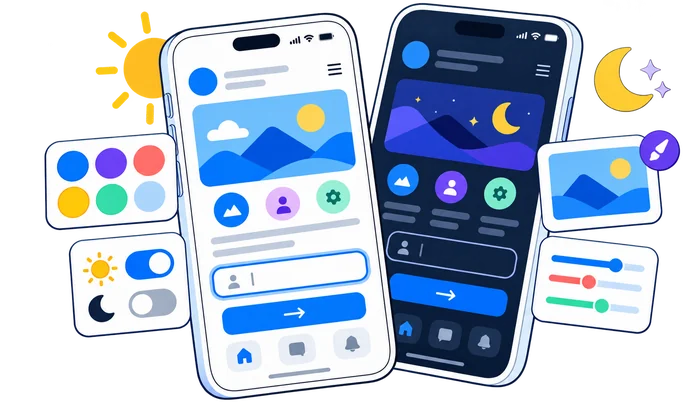
Dark mode is not created by simply inverting colors. Shadows, muted text, borders, images and brand colors may need separate values to preserve hierarchy and contrast. A color that passes on white may become harsh, faint or ambiguous on a dark surface.
Audit both themes independently and test transitions between them. Error, warning and success states must remain recognizable in each theme, and text embedded in images should not become unreadable when surrounding colors change.
Common Website Color Mistakes
Most color problems come from treating appearance as an isolated branding decision. The following mistakes weaken accessibility, make experiments harder to interpret or create unsupported SEO claims.
- Choosing a CTA color from a generic psychology chart without testing it in context.
- Using light gray text to create a minimalist look at the expense of readability.
- Communicating links, errors, prices or status only through color.
- Removing keyboard focus outlines without providing a visible replacement.
- Testing several design and copy changes at once and crediting the result to color.
- Reporting a hypothetical example as if it were a measured case study.
- Assuming paid visits, lower bounce rate or longer sessions directly improve rankings.
- Checking desktop colors while ignoring mobile, dark mode and text over images.
- Using a passing contrast score as proof that the whole component is easy to understand.
Website Color Optimization Checklist
Use this checklist before publishing a new palette or launching a CTA experiment. It keeps the review focused on measurable accessibility, usability and conversion evidence.
- Define the primary task and CTA on each important template.
- Measure normal and large text contrast using the correct WCAG threshold.
- Check controls, icons, borders and focus indicators for non-text contrast.
- Make links, errors and statuses understandable without color alone.
- Review hover, focus, active, disabled, success, warning and error states.
- Test mobile layouts, browser zoom, responsive images and dark mode separately.
- Use recordings or heatmaps to identify friction, not to declare a cause.
- Write one clear hypothesis and change one material variable in an A/B test.
- Measure completed actions and guardrails instead of clicks alone.
- Document the method and result without claiming guaranteed SEO or conversion gains.
A prepared landing page can also be promoted through a separate traffic campaign. Keep that activity distinct from a test intended to represent prospective customers: purchased visits do not, by themselves, establish a representative audience or validate a color treatment.

Buy Website Traffic
If you have a new landing page to promote, you can use SEOVisitor’s website traffic service to send additional visits to that page as part of your marketing plan.
Record the campaign’s destination and dates separately, and keep its activity out of earned-audience conversion comparisons. A traffic campaign does not fix contrast, demonstrate accessibility conformance or purchase organic rankings.
Conclusion
Effective website color is not about discovering a hue that Google prefers. It is about creating a readable, accessible and predictable interface that helps people understand the page and complete the next step. Start with WCAG contrast, visible focus and alternatives to color-only signals. Then test the palette on real components, devices and interface states.
When a color change needs validation, form a specific hypothesis and run a controlled experiment. Keep SEO, usability and conversion evidence separate, and report only what the data supports. That approach gives SEOVisitor readers a repeatable way to improve design decisions without relying on color myths or ranking promises.
Frequently Asked Questions
Quick answers to common questions about website colors and conversions
No. Color is not a direct Google ranking factor. It can affect readability, accessibility and conversions, but those effects do not guarantee higher rankings.
For WCAG 2.2 Level AA, normal text generally needs at least a 4.5:1 contrast ratio, while large text generally needs at least 3:1, subject to documented exceptions.
There is no universal best CTA color. The button should be easy to recognize, contrast with nearby elements and remain consistent with the page hierarchy and brand.
First ensure both treatments meet the agreed accessibility baseline. Then vary the color while keeping the label, position, size, offer and audience stable. Measure completed actions and guardrails with a predefined stopping rule; do not retain a known accessibility failure as the control.
They can influence readability, attention and CTA recognition, which may affect conversions. The result depends on the full page context and should be validated with controlled testing rather than treated as a guarantee.
Yes. Use an additional cue such as an underline, icon or clear styling so users do not need to perceive color alone to recognize a link.
Measure contrast, use a color-vision simulator and confirm that labels, shapes, patterns or icons communicate the same meaning without relying only on hue. User testing can reveal issues that simulations miss.
Yes. Test text, controls, icons, focus indicators and status colors in dark mode independently because a combination that works on a light background may fail or become uncomfortable on a dark surface.
No. A contrast result concerns the measured pair and relevant criterion. The page still needs usable labels, keyboard behavior, visible focus, understandable errors and other applicable checks. Test the actual component and its states, not just isolated color swatches.
WCAG's text and non-text contrast criteria include exceptions for genuinely inactive interface components. Record when that exception applies, while keeping the disabled state understandable. Placeholder and helper text in an enabled field do not become exempt merely because they look muted.
Check the delivered font size and weight against W3C's large-scale definition: at least 18pt regular or 14pt bold, with equivalent-size provisions for CJK fonts. A heading's HTML level or visual prominence alone does not establish that it qualifies.



Comments
Leave a Comment