


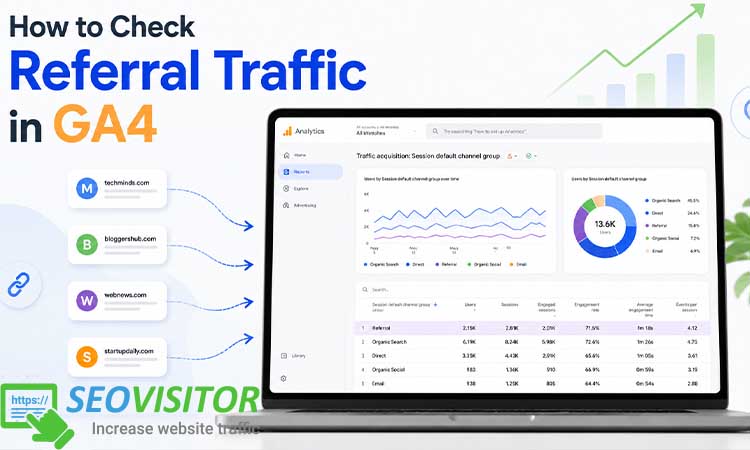
How to Check Referral Traffic in GA4
You may be getting visitors from other websites every day without knowing which sources are actually valuable. A blog mention, directory listing, affiliate link, or partner website may be sending traffic to your site, but not all referral traffic brings real engagement or conversions. This becomes even more important if you plan to Buy Referral Traffic and want to make sure the visitors you receive are relevant and useful.
Referral traffic shows how people find your website through links on other websites. However, in GA4, this data is not always easy to find because Google Analytics 4 organizes traffic sources differently from Universal Analytics.
In this guide, you will learn how to check referral traffic in GA4, find referring websites, analyze traffic quality, and use the data to improve your SEO, partnerships, and website growth.
What Is Referral Traffic in GA4?
Referral traffic in GA4 refers to visitors who arrive on your website after clicking a link from another website. For example, if someone reads an article on a partner blog, clicks a link to your product page, and lands on your website, that visit may be recorded as referral traffic.
In GA4, referral traffic is usually identified through source and medium data. The source tells you where the visitor came from, such as example.com. The medium describes the type of traffic, such as referral. Together, these appear as source/medium, such as:
example.com / referral
partnerblog.com / referral
industrydirectory.com / referral
Referral traffic can come from many places, including blogs, online magazines, business directories, forums, review websites, affiliate websites, partner pages, guest posts, resource pages, PR mentions, and community websites.
The reason referral traffic is so valuable is that it often shows where your brand is being talked about. Organic traffic tells you how people find you through search engines. Paid traffic tells you how ads are performing. Referral traffic shows which external websites are actually sending visitors your way.
For SEO teams, referral traffic is especially useful because it can reveal backlinks that are not only helping authority but also sending real users. A backlink that never sends visitors may still have SEO value, but a backlink that sends engaged traffic can be even more important from a business perspective.
Why Referral Traffic Matters for SEO and Marketing
Referral traffic is not just another number inside GA4. It can help you understand which relationships, mentions, backlinks, and external placements are working.
For example, if a guest post on an industry blog sends 300 visitors and 25 leads, that source deserves more attention. You might write another guest article, build a stronger partnership, or promote a case study through the same website. On the other hand, if a website sends 5,000 visits with almost no engagement and zero conversions, that traffic may not be as valuable as it looks.
Referral traffic can help you answer important questions:
Which websites are sending visitors to my site?
Which backlinks bring real users, not just SEO value?
Which partnerships are producing engaged traffic?
Which referral sources generate leads, sales, or signups?
Are there suspicious websites sending low-quality or bot-like traffic?
Which landing pages perform best for referral visitors?
This is where GA4 becomes useful. It does not simply show traffic volume. It also shows engagement, key events, conversions, revenue, landing pages, device categories, and user behavior. That means you can move beyond “Where did the traffic come from?” and start asking, “Was this traffic actually useful?”
read more:Safe Traffic Acquisition
How to Check Referral Traffic in GA4 Step by Step
This is the core process. If you only need the basic answer, here it is:
To check referral traffic in GA4, go to Reports, open Acquisition, select Traffic acquisition, change the primary dimension to Session source/medium, and look for rows where the medium is referral.
Now let’s break that down properly.
Step 1: Open the Correct GA4 Property
First, log in to Google Analytics and make sure you are viewing the correct GA4 property. This sounds simple, but it is a common source of confusion, especially for agencies, consultants, or businesses that manage several websites.
Check the property name at the top of the interface. If your company has both old Universal Analytics data and a newer GA4 property, make sure you are inside the GA4 property. Universal Analytics and GA4 do not structure referral reports in the same way.
A quick check is to look at the left-hand menu. In GA4, you will see sections such as Reports, Explore, Advertising, and Admin.
Step 2: Go to Reports
In the left-hand navigation, click Reports. This is where GA4 keeps standard reporting views, including acquisition, engagement, monetization, retention, and user attributes.
For referral traffic, you will mainly work inside the Acquisition area. Acquisition reports are designed to show where users and sessions come from.
Step 3: Open Acquisition
Inside Reports, find Acquisition. You will usually see two important reports:
User acquisition
Traffic acquisition
These two reports sound similar, but they answer different questions.
User acquisition focuses on how new users first found your website. Traffic acquisition focuses on where sessions came from, including sessions from new and returning users.
For referral traffic analysis, the Traffic acquisition report is usually the better starting point because it tells you where website sessions came from during the selected time period.
Step 4: Select Traffic Acquisition
Click Traffic acquisition. This report shows traffic by channel, source, medium, campaign, and other session-level dimensions.
By default, GA4 may show the report using Session default channel group. This means you might see categories like Organic Search, Direct, Referral, Paid Search, Organic Social, Email, and others.
If you simply want to know whether referral traffic exists, look for the Referral row. But if you want to know which websites are sending that traffic, you need to change the dimension.
Step 5: Change the Dimension to Session Source/Medium
At the top of the table, look for the primary dimension dropdown. It may say Session default channel group. Click it and change the dimension to Session source/medium.
This is one of the most useful views for referral traffic because it shows both the source and the medium together. Instead of only seeing “Referral,” you can see the actual source, such as:
example.com / referral
newswebsite.com / referral
partnerdomain.com / referral
You can also test other dimensions depending on your goal:
Session source: good for seeing referring domains
Session medium: good for filtering traffic type
Session source/medium: best for practical referral analysis
Session campaign: useful when UTM parameters are used
Landing page: useful for seeing which pages receive referral visitors
Step 6: Filter for Referral Traffic
Once you are using Session source/medium, you may see many different traffic types: organic, cpc, email, social, referral, and others.
To focus only on referral traffic, use the search box or report filter. Search for “referral” in the table, or create a filter where Session medium exactly matches referral.
This helps remove other traffic sources and gives you a cleaner list of referring websites.
If your website gets a lot of traffic, filtering is important. Otherwise, referral sources may be buried under organic search, paid campaigns, direct visits, and social traffic.
Step 7: Review the Referral Sources
Now look at the referral sources listed in the table. These are the websites sending traffic to your site.
Do not judge the sources only by session count. A referral source with 10,000 sessions may look impressive, but if visitors leave immediately and never convert, it may not be a strong source. A smaller source with 200 highly engaged visitors may be much more valuable.
Look at the source name carefully. You may find:
Partner websites
Blog mentions
Guest posts
Directories
Review platforms
Forums
Affiliate websites
PR placements
Payment gateways
Subdomains
Unexpected or suspicious domains
Payment gateways and your own domains can sometimes create self-referral issues. If you see your own domain or checkout provider appearing as a referral source, you may need to review your cross-domain tracking or unwanted referrals settings.
Step 8: Analyze Engagement and Conversions
The real value of referral traffic is not just the visit. It is what visitors do after they arrive.
In GA4, review metrics such as:
Sessions
Users
Engaged sessions
Engagement rate
Average engagement time
Key events
Conversions
Revenue
Event count
For a content website, you may care about engaged sessions, scrolls, newsletter signups, and time on page. For an ecommerce website, you may care about product views, add-to-cart events, purchases, and revenue. For a SaaS website, you may care about demo requests, free trials, pricing page visits, and account signups.
A practical approach is to sort referral sources by conversions or key events, not just sessions. This helps you find the websites that bring business value.
How to Find Referring Websites in GA4
If your main goal is to see the exact websites sending traffic, use Session source or Session source/medium.
Session source often shows the referring domain. Session source/medium gives more context because it shows whether the source is classified as referral, organic, cpc, email, or another medium.
For example:
industryblog.com / referral means the visitor came from a link on that website.
newsletterpartner.com / email means the visit came from an email campaign, not a standard referral.
facebook.com / referral or social may appear differently depending on how GA4 classifies the traffic and whether UTM tags are used.
To get even more useful information, combine referral source data with landing page data. This helps you understand which page each referral source is sending visitors to.
For example, you may discover that one industry directory sends traffic to your homepage, while a guest post sends visitors to a comparison page that converts better. That insight can help you decide where to focus your next campaign.
For advanced analysis, use Explore in GA4. Create a free-form exploration with:
Rows: Session source/medium
Rows or breakdown: Landing page
Metrics: Sessions, Engaged sessions, Key events, Conversions, Revenue
This gives you a more flexible view than the standard report and is useful when you need deeper analysis for SEO, partnerships, or campaign reporting.
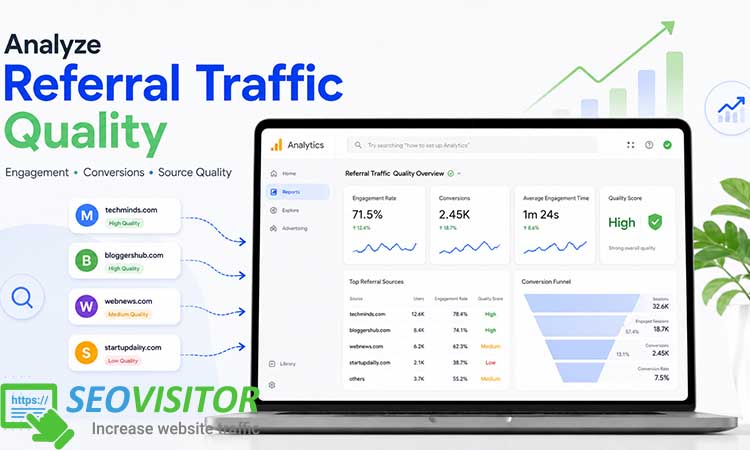
How to Analyze Referral Traffic Quality in GA4
Not all referral traffic is good traffic. One of the biggest mistakes marketers make is celebrating traffic volume without checking quality.
A referral source is valuable when visitors from that source behave in a way that supports your business goals. That might mean reading multiple pages, watching a video, submitting a form, signing up for a newsletter, starting a free trial, or making a purchase.
Start with engagement rate. A high engagement rate usually means visitors are finding the page relevant. If a referral source has a very low engagement rate, the referring page may be misleading, irrelevant, poorly targeted, or sending accidental clicks.
Next, check average engagement time. If people arrive from a referral source and spend meaningful time on the page, that is a good sign. If they leave almost instantly, the source may not be qualified.
Then look at conversions or key events. This is where referral traffic becomes more than a marketing report. A source that drives conversions is a source worth studying. Ask yourself:
Can we get more links from this website?
Can we create a stronger partnership?
Can we publish another guest post there?
Can we build a campaign around the same audience?
Can we create a landing page specifically for this referral audience?
Also check landing pages. Sometimes referral traffic performs poorly because the source is bad. Other times, the source is good but the landing page is weak. If visitors arrive from a relevant website but do not convert, your page may need clearer messaging, a stronger CTA, faster loading speed, or a better offer.
Referral Traffic vs Direct Traffic vs Organic Traffic
Understanding the difference between traffic types helps you avoid misreading GA4 reports.
Referral traffic comes from links on other websites. If a visitor clicks a link from a blog, directory, or partner website and lands on your site, that session may be counted as referral traffic.
Direct traffic usually means GA4 could not identify a clear source. This may happen when someone types your URL directly, uses a bookmark, clicks from an untagged document, opens a link from certain apps, or arrives through a situation where referral data is not passed.
Organic traffic comes from unpaid search engine results. If someone searches on Google, clicks your page, and arrives on your website, that is organic search traffic.
This difference matters because each channel requires a different strategy. Organic traffic is improved through SEO. Referral traffic is improved through backlinks, partnerships, PR, directories, guest posting, and brand mentions. Direct traffic is often influenced by brand awareness, offline campaigns, returning visitors, and tracking limitations.
How to Track Referral Traffic with UTM Parameters
Referral traffic is useful by itself, but UTM parameters make it much clearer.
A UTM parameter is a small tracking tag added to a URL. It tells GA4 more about where a visitor came from and which campaign drove the visit.
For referral campaigns, a clean structure might look like this:
utm_source=partnername
utm_medium=referral
utm_campaign=spring_campaign
For example, if a partner website is promoting your guide, you could give them a tagged link. When visitors click it, GA4 can show that the traffic came from that specific partner and campaign.
UTM tracking is especially helpful for:
Partner campaigns
Affiliate campaigns
Influencer collaborations
Sponsored articles
Newsletter swaps
PR campaigns
Directory listings
Guest posting campaigns
The most important rule is consistency. Do not use “Referral” in one campaign, “referral” in another, and “partner” in another unless you have a clear naming system. Inconsistent UTM naming makes GA4 reports messy and harder to analyze.
A simple naming convention might be:
Use lowercase only
Use hyphens instead of spaces
Keep source names consistent
Use referral as the medium for referral campaigns
Use clear campaign names
For example:
utm_source=industry-blog
utm_medium=referral
utm_campaign=guest-post-june
Common Problems When Checking Referral Traffic in GA4
GA4 referral data is powerful, but it can also be confusing. Here are some common issues and what they usually mean.
Referral Traffic Showing as Direct
Sometimes traffic that should look like referral traffic appears as direct. This can happen when referral data is missing or blocked. Links from apps, messaging platforms, PDFs, secure environments, or certain redirects may not always pass clean referral information.
If referral traffic is showing as direct, review how links are shared. If you control the link, use UTM parameters. Tagged links give GA4 clearer information and reduce confusion.
Referral Traffic Showing as Unassigned
Unassigned traffic usually means GA4 could not classify the session into a default channel group. This can happen because of missing or inconsistent campaign parameters, unusual medium values, or tracking setup issues.
To reduce unassigned traffic, use standard UTM naming and avoid custom medium names that GA4 may not recognize.
Self-Referrals
A self-referral happens when your own domain appears as a referral source. This can happen because of cross-domain tracking problems, payment gateways, subdomains, or tracking interruptions during the user journey.
For example, if a user goes from your website to a checkout domain and then returns to your thank-you page, GA4 may treat the checkout domain as the referral source if tracking is not configured correctly.
Self-referrals can distort your reports because they hide the original source of traffic. If you see your own domain or payment providers appearing in referral reports, it is worth reviewing your GA4 configuration.
Suspicious Referral Sources
Sometimes referral reports include strange domains that send low-quality traffic. If a source has very short engagement time, no conversions, and an unusual spike in sessions, investigate it carefully.
Not every suspicious source is harmful, but you should avoid making marketing decisions based on traffic that does not behave like real users.
How to Use Referral Traffic Data to Improve SEO
Referral traffic can support your SEO strategy in several ways.
First, it helps you identify backlinks that actually send visitors. SEO tools can show you backlink profiles, but GA4 shows whether those backlinks bring traffic and engagement. A link that brings real users may be worth strengthening through deeper collaboration.
Second, referral traffic helps you find content partnerships. If a blog post or resource page sends qualified traffic, you can pitch similar content to that website or related websites.
Third, referral data can reveal audience fit. If traffic from a niche website converts well, that may tell you something important about your ideal customer. You can use that insight to shape future content, landing pages, and outreach campaigns.
Fourth, referral traffic can help you prioritize link building. Instead of chasing every possible backlink, focus on websites that are relevant, trusted, and capable of sending engaged visitors.
A practical monthly workflow looks like this:
Review referral sources in GA4
Sort by conversions or key events
Check engagement rate and average engagement time
Identify the top 5 referral sources
Review which landing pages they send traffic to
Look for partnership or content expansion opportunities
Investigate suspicious or low-quality sources
Best Practices for Checking Referral Traffic in GA4
The first best practice is to focus on quality, not just quantity. A referral source with fewer sessions but higher conversions is usually more valuable than a high-volume source with no engagement.
The second best practice is to compare referral traffic against other channels. Look at how referral traffic performs compared with organic search, paid search, direct traffic, social traffic, and email. This helps you understand whether referral visitors are more or less valuable than other audiences.
The third best practice is to use UTM parameters when you control the link. If you are running a partnership campaign, guest post campaign, affiliate program, or sponsored placement, use tagged links so GA4 can report the traffic clearly.
The fourth best practice is to check landing pages. Referral traffic does not exist in isolation. A good source can underperform if the landing page is weak. Make sure the page matches the visitor’s intent.
The fifth best practice is to monitor referral traffic regularly. For most websites, a monthly review is enough. For active campaigns, weekly monitoring may be better. If you run affiliate campaigns, PR campaigns, or paid placements, you may want to check performance more often.
Finally, document your findings. A simple spreadsheet with source, sessions, engagement rate, conversions, revenue, landing page, and action notes can help your team make smarter decisions over time.
Conclusion: How to Check Referral Traffic in GA4 and Use It Properly
Learning How to Check Referral Traffic in GA4 is not just about finding a report. It is about understanding which websites, partners, backlinks, campaigns, and mentions are sending visitors to your site, and whether those visitors are actually valuable.
The best place to start is the Traffic acquisition report. From there, change the dimension to Session source/medium, filter for referral traffic, and analyze each source based on engagement and conversions. Do not stop at traffic volume. Look at what people do after they land on your website.
Referral traffic can reveal strong partnerships, profitable backlinks, successful guest posts, PR opportunities, affiliate performance, and hidden growth channels. It can also expose tracking problems, self-referrals, and low-quality traffic sources that need attention.
If you have not reviewed your referral traffic recently, open GA4 today and check your top referral sources. Find the websites that send engaged visitors, strengthen those relationships, and use the data to build a smarter SEO and traffic growth strategy.
FAQs
How do I check referral traffic in GA4?
Go to Reports, open Acquisition, select Traffic acquisition, and change the primary dimension to Session source/medium. Then look for sources where the medium is referral, such as example.com / referral.
Where is the referral report in Google Analytics 4?
GA4 does not show referral traffic in the same way Universal Analytics did. In GA4, referral traffic is usually found inside Acquisition reports, especially the Traffic acquisition report.
What is Session source/medium in GA4?
Session source/medium shows both where a session came from and the type of traffic. For referral traffic, it may look like partnerwebsite.com / referral.
What is the difference between referral traffic and direct traffic?
Referral traffic comes from a link on another website. Direct traffic means GA4 does not have a clear referral source, which may happen because of typed URLs, bookmarks, privacy restrictions, apps, redirects, or missing tracking data.


Lasted Comments (0)