


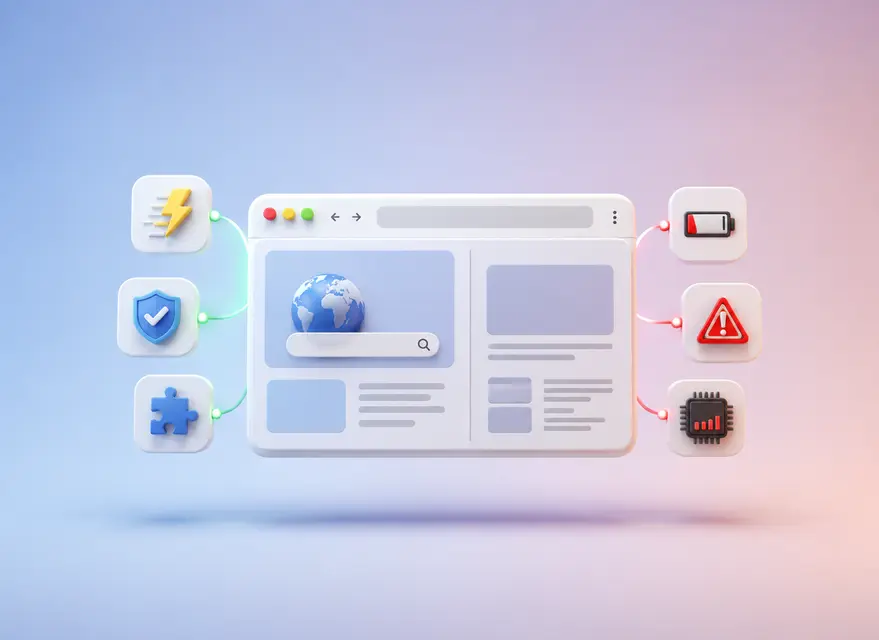
Web browsers make it easy to access websites and web apps, but they also involve trade-offs in privacy, security, performance, compatibility, and resource usage. This guide explains those pros and cons and helps you choose the right browser for your needs.
For most people, opening a browser is the first step toward almost everything they do online. Work platforms, online banking, search engines, streaming services, email, shopping, social networks, and even professional software increasingly run inside a browser window.
That convenience can make a browser look like a simple tool, but today’s browsers do much more than display web pages. They may store your passwords, synchronize personal information, run complex web applications, manage extensions, block trackers, control access to your camera and microphone, and connect your activity across multiple devices.
So, when you look at the advantages and disadvantages of using a browser, speed alone doesn’t tell the whole story. Privacy, security, compatibility, resource usage, synchronization, extensions, and the devices you use can all change your experience.
This guide takes a practical look at what web browsers actually do, where their strengths and limitations come from, how the most popular browsers differ, and how you can choose one based on your real needs rather than popularity alone.
What Is a Web Browser?
A web browser is software that retrieves web resources and turns them into pages you can view and interact with. When you type a web address or click a link, the browser communicates with the relevant server, receives information such as HTML, CSS, JavaScript, images, and media, and then uses a rendering engine to display that content on your screen.
MDN describes a browser as a program that retrieves and displays pages from the web and lets users move between those pages through hyperlinks. Common examples include Google Chrome, Microsoft Edge, Mozilla Firefox, Safari, and Opera.
In everyday use, however, a modern browser is closer to an application platform than a simple page viewer. Email services, document editors, project-management tools, video meetings, design applications, analytics dashboards, and cloud storage can all operate directly inside it.
That shift is one of the main reasons choosing a browser matters more today than it did when most websites were little more than text and images.
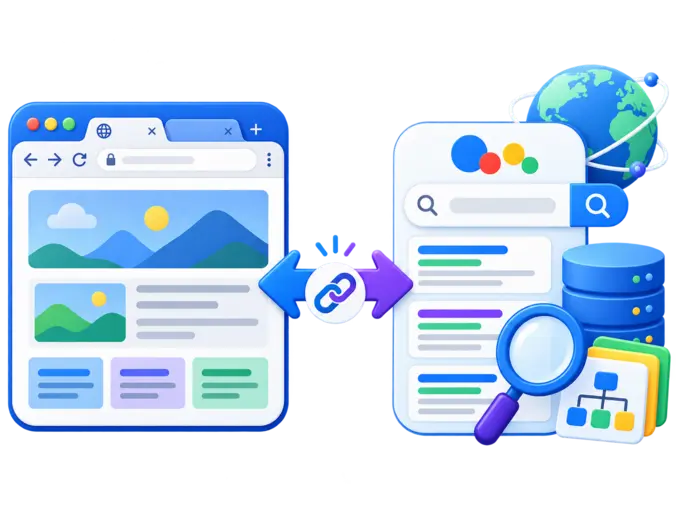
A Web Browser and a Search Engine Are Not the Same
It’s very easy to treat a browser and a search engine as the same thing because you often use them at the same time.
They aren’t the same technology, though, and understanding the difference makes the rest of this topic much clearer.
| Feature | Web Browser | Search Engine |
|---|---|---|
| Main purpose | Accesses and displays websites | Helps users find information on the web |
| Examples | Chrome, Firefox, Edge, Safari | Google, Bing, DuckDuckGo |
| How it is used | Installed or available as an application | Usually accessed through a browser |
| Core function | Retrieves and renders web content | Crawls, indexes, and organizes searchable content |
Google Chrome, for example, is a browser. Google Search is a search engine. You can open Chrome and search with Google, Bing, DuckDuckGo, or another provider. In the same way, you can use Google Search from Firefox, Edge, Safari, Brave, or Opera.
That distinction matters because switching your browser doesn’t automatically mean you have to switch your search engine.
If you’d like more context on how web search itself developed, see our guide to the first search engines and the evolution of web search.
Advantages and Disadvantages of Web Browsers at a Glance
If you want the short version first, the main trade-offs look like this:
| Advantages | Disadvantages |
|---|---|
| Fast access to websites and online services | Privacy and tracking concerns |
| Ability to run web applications | Potentially high RAM and CPU usage |
| Password, bookmark, and tab synchronization | Security risks from unsafe websites or extensions |
| Extension and customization support | Compatibility differences between browsers |
| Automatic security updates | Battery consumption on some devices and workloads |
| Built-in privacy and safety controls | Dependence on cloud accounts for some features |
| Cross-device access to data | Too many permissions and notifications can become intrusive |
This comparison is a practical guide rather than a universal performance benchmark. The actual experience depends on the browser version, device, operating system, extensions, settings, websites being used, and individual browsing habits.
Advantages of Web Browsers
Modern browsers offer several practical benefits, and those advantages explain why so much everyday computing has moved into the browser.
Easy Access to Information and Online Services
The most obvious benefit is that one browser gives you access to an enormous range of online resources through a familiar interface.
You can move from a news website to an online store, banking service, cloud application, social network, university portal, or search engine without installing separate desktop software for every task.
Bookmarks, browsing history, tabs, address-bar search, autofill, translation, and download management make that experience even smoother.
The real advantage isn’t simply that information is available. It’s that many different services can be reached, managed, and used from one consistent environment.
Web Applications Reduce the Need for Separate Software
A large number of tasks that once required installed programs can now happen directly in your browser.
Document editing, spreadsheets, email, customer relationship management, analytics, image design, project management, and communication platforms all have browser-based versions.
For you as a user, that can make moving between computers much easier because much of the application and account data is stored online rather than locked to one local installation.
This doesn’t mean browser apps replace every desktop application, especially for demanding professional work. But for common office, educational, collaboration, and communication tasks, they can remove a lot of installation and maintenance friction.
Browsers Work Across Multiple Devices
Most major browsers are available on more than one operating system and device type.
That makes it easier to keep a familiar browsing environment when you move between a desktop, laptop, tablet, and smartphone.
This is especially useful if you don’t stay inside one ecosystem. You might use Windows at work, Android on your phone, and another operating system at home while still accessing similar bookmarks and account information.
Keep in mind that desktop and mobile versions don’t always offer identical features, so cross-platform availability doesn’t necessarily mean complete feature parity.
Synchronization Makes Switching Devices Easier
Synchronization is one of those browser features you may not think much about until you start using several devices.
Chrome, for example, can save information including bookmarks, passwords, reading lists, settings, extensions, and other browser data to a signed-in Google Account, depending on your settings.
That means a bookmark saved on one computer can appear on another device, while saved credentials or preferences can follow you between installations.
The convenience is obvious if you’re constantly switching devices. At the same time, it’s worth remembering that synchronization can associate more of your browser data with a cloud account. That’s why it makes sense to review what is being synced instead of simply turning every option on.
Extensions Can Add Specialized Features
Extensions let you expand what your browser can do.
Depending on the browser, you can add password managers, accessibility tools, ad blockers, translators, note-taking features, development utilities, productivity tools, and website-analysis extensions.
Chrome explicitly recommends checking extension permissions and installing extensions only from developers you trust.
That’s an important point because extensions are software. Some can receive permission to read or change information on websites, so they shouldn’t be treated as harmless visual add-ons.
If you work in SEO or website management, you can also see our separate guide to useful Chrome extensions for SEO.
Automatic Updates Improve Security and Compatibility
Browsers constantly have to deal with new web technologies, new standards, and new security threats.
Regular updates allow browser developers to fix vulnerabilities, support newer website features, and improve compatibility. Most modern browsers automate much of this process, so you don’t have to manually find and install every security patch.
Chrome’s Safety Check, for example, can alert users to browser updates, potentially harmful extensions, unused site permissions, and problematic notification permissions. (support.google.com)
Automatic updates don’t make a browser invulnerable, but they significantly reduce the risk of continuing to use an old version with known problems.
Built-In Security and Privacy Tools Provide Basic Protection
Today’s browsers include security protections that simply didn’t exist in the early days of the web.
Depending on the browser, these may include phishing warnings, malicious-download detection, permission controls, tracking prevention, HTTPS-related protections, private browsing, and extension checks.
Chrome Safe Browsing can warn users about phishing, malware, abusive websites, unsafe downloads, and potentially dangerous extensions.
Firefox includes Enhanced Tracking Protection and Total Cookie Protection, while Edge gives users several tracking-prevention levels.
These protections are useful, but they don’t remove the need for careful browsing habits.
Key takeaway: A browser can bring many of your digital activities into one place, but you get the most value when you actively manage synchronization, extensions, privacy settings, and security features instead of relying entirely on defaults.

Buy Website Traffic
If you want to increase your website traffic directly and have a targeted impact on Google’s algorithms, use the increase website visits Seovisitor service.
Disadvantages of Web Browsers
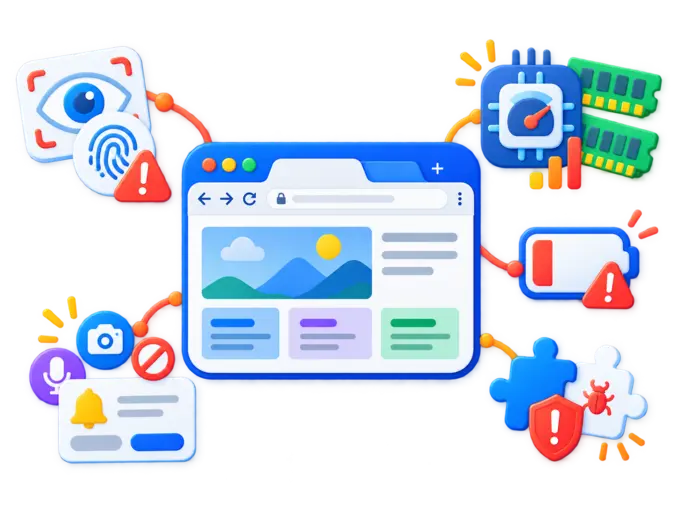
Convenience always comes with trade-offs. In many cases, browser disadvantages aren’t caused by a browser being “bad”; they come from how much information and functionality the modern browser is expected to handle.
Privacy and Online Tracking
Cookies and similar technologies aren’t automatically harmful. Websites use them for useful functions such as keeping you logged in, remembering shopping carts, saving preferences, and measuring performance.
The same browser environment can also be used for cross-site tracking, advertising profiles, and behavioral measurement.
Different browsers handle that issue in different ways. Firefox uses Total Cookie Protection to isolate cookies and reduce cross-site tracking. Edge offers Basic, Balanced, and Strict tracking prevention, while Safari uses Intelligent Tracking Prevention to limit cross-site profiling.
The useful takeaway is simple: don’t assume every browser handles tracking in the same way. Review the privacy controls that actually matter to you.
Browsers Can Consume Significant RAM and CPU Resources
Although a browser looks like one application, a normal browsing session can involve multiple tabs, background processes, extensions, video streams, web applications, advertisements, and scripts all running at once.
As that workload grows, memory and processor usage can grow with it.
Twenty simple text pages won’t place the same load on your computer as twenty dashboards, video platforms, collaborative apps, and heavily scripted websites. Extensions can add even more background activity.
That’s why statements like “Browser X always uses the least RAM” aren’t particularly useful without context. Your hardware, operating system, extensions, tab count, websites, and browser version can all change the result.
If performance is a problem, testing your normal workload in another browser is usually more meaningful than relying only on a generic benchmark.
Battery Life Can Be Affected by Browsing Workloads
Video playback, animations, background tabs, advertisements, extensions, scripts, and CPU-intensive web applications all use power.
That may not matter on a desktop connected to electricity, but it’s much more noticeable on a laptop or mobile device.
Browser developers approach power efficiency differently. Apple, for example, develops Safari specifically for Apple hardware and highlights battery optimization as part of the browser’s design.
Even then, your workload matters. A browser showing a mostly static article won’t consume the same amount of energy as the same browser running multiple video streams and web applications.
Unsafe Extensions Can Introduce Security Risks
Extensions are useful precisely because they can interact deeply with the browser. That same access can become a security problem.
An extension with broad permissions may be able to access website data, change pages, interact with browsing activity, or perform other privileged actions.
The risk becomes easier to overlook when you’ve accumulated extensions over several years and no longer remember why some of them were installed.
A practical habit is to review your extension list periodically. Remove what you no longer use, be cautious with tools from unknown developers, and pay attention when an extension asks for permissions that don’t seem connected to its function.
Google similarly recommends removing applications and browser extensions you don’t need and avoiding software from unknown sources.
Websites May Behave Differently Across Browsers
Web standards are much more consistent than they used to be, but browser compatibility problems haven’t disappeared completely.
A site might work perfectly in one browser yet show a layout issue, media problem, broken interaction, or unsupported feature in another.
This matters most when you rely on a specialized web application for work. If one browser repeatedly creates problems with an important platform, keeping a second browser available is often more practical than troubleshooting the same issue every time.
For website owners, browser, operating-system, and device data can also help identify unusual traffic and usability patterns. Our guide to distinguishing real users from bot traffic explains how browser and device information can be used as one part of a broader investigation.
Permissions and Notifications Can Become Intrusive
Browsers now control access to several sensitive device capabilities:
- Camera access
- Microphone access
- Location
- Notifications
- Clipboard access
- Pop-ups
- Downloads
- Stored site data
Those permissions are necessary in the right context. A video meeting, for example, genuinely needs microphone and camera access.
The problem starts when you click “Allow” automatically.
After enough time, many sites may have permissions they no longer need. Reviewing those settings occasionally can reduce unwanted notifications and unnecessary access to your device.
Cloud Synchronization Creates Account Dependence
Syncing your data is convenient, but it can also tie bookmarks, passwords, history, preferences, and other information to an online account.
If you lose access to that account, the account is compromised, or you simply decide you don’t want to use cloud synchronization anymore, some of that convenience disappears.
If browser sync is important to your workflow, protect the related account with a strong unique password and multi-factor authentication where available.
It’s better to think of sync as an optional convenience layer, not something you must use in order to browse the web.
Popular Web Browsers Have Different Strengths
There’s no single browser that is objectively best for every person and every device.
Current browser comparisons usually look at privacy, security, performance, extensions, features, and platform fit rather than trying to reduce everything to one number.
So a more useful question is:
Which browser fits the way you actually use the web?
Google Chrome: Strong Ecosystem and Extension Support
Chrome is a practical choice if you already rely heavily on Google services or if your workflow depends on Chrome extensions.
Its synchronization system can make bookmarks, passwords, extensions, preferences, and other information available across signed-in devices. Chrome also includes Safe Browsing protections for known dangerous websites, downloads, phishing attempts, and problematic extensions.
The trade-off is that you should pay attention to what data you choose to save to your Google Account and avoid letting your extension list grow without regular review.
Best suited to: users prioritizing ecosystem integration, extensions, and a familiar cross-platform workflow.
Microsoft Edge: Practical for Windows Users
If Windows is at the center of your workflow, Microsoft Edge is a natural browser to consider because it integrates closely with Microsoft’s operating system and services.
Edge includes Basic, Balanced, and Strict tracking-prevention modes. Microsoft explains that stricter prevention can improve privacy but may cause parts of certain websites to stop working as expected.
That’s a useful example of a broader principle: stronger privacy restrictions sometimes require a small compatibility trade-off.
Best suited to: Windows users who value Microsoft integration and built-in browser features.
Mozilla Firefox: Privacy Controls and a Different Browser Engine
Firefox is structurally different from most of today’s major desktop browsers because it isn’t based on Chromium. Instead, it uses Mozilla’s Gecko rendering engine.
It also places strong emphasis on privacy, including Enhanced Tracking Protection and Total Cookie Protection, which isolates cookies by site to make cross-site tracking more difficult.
If having a major non-Chromium browser matters to you, that distinction is worth considering.
Best suited to: users prioritizing privacy controls, customization, and browser-engine diversity.
Safari: Optimized Around Apple Devices
Safari is designed around Apple’s hardware and software ecosystem.
Apple emphasizes integration, privacy, and power efficiency, and its Intelligent Tracking Prevention system is designed to reduce tracking across websites. Safari is also optimized specifically for Apple hardware.
That makes it a straightforward choice if most of your daily devices are Macs, iPhones, and iPads.
The limitation is mostly about ecosystem fit. If you constantly move between Apple and non-Apple devices, another browser may give you a more consistent cross-platform experience.
Best suited to: users primarily working within the Apple ecosystem.
Brave: Privacy Controls Enabled by Default
Brave is based on Chromium on desktop and Android and takes a more aggressive privacy-first approach through its built-in Shields system, which blocks ads and trackers. Its Chromium foundation also allows desktop users to work with Chrome-compatible extensions.
Because that blocking is stronger than some browser defaults, you may occasionally need to make an exception for a site that depends on blocked third-party scripts or resources.
Best suited to: users who want stronger privacy protections with relatively little initial configuration.
Opera: Many Tools Built Into the Browser
Opera takes a feature-heavy approach.
Its current feature set includes an ad blocker, browser VPN, synchronization, workspaces, messaging integrations, tab-management tools, and AI features.
If you prefer having more functionality built directly into the browser, that can reduce your dependence on separate extensions. If you prefer a very minimal interface, the same feature density may feel unnecessary.
Best suited to: users who prefer integrated productivity and browsing tools in a single interface.
Compare Popular Web Browsers Before Choosing One
| Browser | Practical Fit | Notable Strength | Main Trade-Off to Consider |
|---|---|---|---|
| Chrome | Google ecosystem and extension users | Sync and extension ecosystem | Account/data settings and resource usage |
| Edge | Windows users | Windows/Microsoft integration | Feature density and privacy configuration |
| Firefox | Privacy-conscious and non-Chromium users | Tracking controls and Gecko engine | Occasional site-specific compatibility differences |
| Safari | Apple users | Apple integration and efficiency | Limited appeal outside Apple ecosystem |
| Brave | Privacy-focused users | Built-in blocking | Some sites may require exceptions |
| Opera | Users wanting many built-in tools | Integrated features | Interface may feel busy |
Treat this table as a decision aid, not a leaderboard. What feels like a limitation to one user may be completely irrelevant to another.
How to Choose the Right Web Browser
Choosing a browser gets much easier when you start with your own habits instead of marketing claims.
Start With the Websites You Depend On
Make a quick mental list of the websites and applications you use every day.
If one browser repeatedly creates problems with a critical work platform, compatibility deserves more weight than a small difference in benchmark performance.
Consider Your Device Ecosystem
Someone using a MacBook, iPhone, and iPad has different synchronization needs from someone who uses Windows at work and Android on a personal phone.
The more devices you use, the more valuable seamless synchronization may become.
Review Privacy Rather Than Assuming It
Instead of labeling one browser “private” and another “not private,” look at what the browser blocks by default, what you can change, what data can be synchronized, and which controls match your expectations.
Privacy isn’t one switch. It’s a group of decisions.
Audit Your Extensions
If your work depends on specific extensions, confirm that suitable alternatives exist before switching.
At the same time, moving browsers can be a useful opportunity to clean out years of extensions you no longer need.
Test Performance With Your Own Workload
A synthetic benchmark can be interesting, but your normal workday is the test that actually matters.
Open the websites, applications, videos, and number of tabs you usually use. Then look at responsiveness, memory pressure, battery behavior, and stability.
That gives you a much more useful answer to the question: Does this browser work well on my device for the way I actually use it?

Use the SCOPE Framework to Compare Browsers
If you don’t want one flashy feature to dominate your decision, use a simple five-part comparison and score each browser from 0 to 2.
Security: Does the browser receive timely updates and provide useful protection against unsafe sites, downloads, extensions, and permissions?
Compatibility: Does it reliably support the websites and web applications you use?
Optimization: Does it perform acceptably on your hardware without excessive memory, CPU, or battery usage?
Privacy: Does it provide the level of tracking prevention, cookie control, and data-management options you expect?
Ecosystem: Does it work smoothly with your devices, accounts, passwords, extensions, and existing workflow?
A browser that scores very well for compatibility but less well for resource efficiency may still be an excellent fit for a powerful desktop. The same browser might be much less comfortable on an older laptop with limited memory.
The point of SCOPE isn’t to create a universal winner. It’s to make sure you’re judging every browser against the same priorities.
Warning Signs That You May Need a Different Browser
Changing browsers may be worth testing if several of these problems keep happening:
- Important websites frequently freeze, crash, or behave incorrectly.
- Normal browsing consistently consumes more resources than your device can comfortably handle.
- Extensions required for work are unavailable or unreliable.
- Privacy controls do not match your expectations.
- Synchronization between your devices is inconvenient or incomplete.
- The browser produces repeated compatibility problems with essential applications.
- You regularly open another browser just to complete ordinary tasks.
One isolated problem doesn’t necessarily mean you need to abandon your browser. First check updates, extensions, profile problems, and the website itself.
What matters more is repeated friction across the tasks you perform every day.
Buy Organic Traffic
If you want to increase your website traffic through Google and have a targeted impact on Google's algorithms, use the increase Google traffic Seovisitor service.
Should You Use One Browser or Multiple Browsers?
There’s nothing inherently wrong with using more than one browser.
In fact, separating activities can make things simpler for some users. You might use one browser profile for work, another for personal accounts, and keep a second browser for testing or for a web application that doesn’t behave well in your main browser.
Developers and website owners also benefit from checking important pages in more than one browser because your visitors aren’t all using the same environment.
On the other hand, keeping several browsers without a clear reason simply gives you more applications to update, configure, and secure.
A simple rule works well: use one primary browser unless a second one solves a specific problem.
Are Web Browsers Safe to Use?
Modern browsers include substantial security protections, but no browser can turn unsafe online behavior into safe behavior.
A good browsing routine still includes the basics:
- Keep the browser updated.
- Avoid suspicious downloads.
- Review extension permissions.
- Use unique passwords.
- Enable multi-factor authentication for important accounts.
- Check unusual permission requests.
- Treat phishing pages and unexpected login prompts carefully.
- Remove extensions that are no longer needed.
It’s also important not to confuse private or incognito browsing with full anonymity. Private modes usually reduce what gets stored locally after your session, but they don’t automatically hide your activity from websites, network administrators, employers, schools, or internet service providers. Firefox’s own documentation makes those limitations clear.
So the safest browser isn’t simply the one with the longest security-feature list. It’s a maintained browser, configured sensibly, used by someone who understands the basic risks.
Conclusion: Weighing the Advantages and Disadvantages of Web Browsers
The advantages and disadvantages of using a browser don’t lead to one universal answer.
Modern browsers give you quick access to information, web applications, extensions, synchronization, password management, and built-in security tools. Those same browsers can also create privacy concerns, consume system resources, introduce risks through extensions, run into compatibility problems, collect too many permissions, or make you more dependent on cloud accounts.
Chrome may make sense if you’re deeply invested in Google’s ecosystem. Edge can fit a Windows-centered workflow. Firefox gives you a major non-Chromium alternative with strong privacy controls. Safari is closely optimized around Apple devices, Brave emphasizes blocking and privacy from the start, and Opera puts many additional tools directly inside the browser.
The most useful way to choose is to define what matters to you first, test browsers using your normal workload, and see which one asks you to make the fewest compromises.
Don’t choose a browser simply because it’s popular. Choose it because it works reliably with your devices, websites, privacy expectations, and everyday tasks.
Frequently Asked Questions
Quick answers to common questions about advantages and disadvantages of web browsers
The main advantages include easy access to websites and web applications, synchronization between devices, password and bookmark management, extensions, automatic updates, and built-in security and privacy controls. Modern browsers can also replace some standalone applications by allowing complex services to run directly on the web.
Common disadvantages include privacy and tracking concerns, memory and CPU consumption, battery usage, risks from malicious extensions or websites, browser-compatibility differences, intrusive notification or permission requests, and dependence on cloud accounts for synchronization features.
A browser is software used to access and display websites. A search engine is a service used to find webpages and other information. Chrome, Firefox, Edge, and Safari are browsers; Google Search, Bing, and DuckDuckGo are search engines.
There is no universal answer because privacy depends on browser settings and user requirements. Firefox, Brave, Safari, and Edge all provide different forms of tracking protection. Compare default protections, cookie controls, account integration, and synchronization settings before deciding.
There is no reliable answer that applies to every device and workload. RAM usage changes according to the operating system, browser version, extensions, websites, number of tabs, and background processes. Testing your normal browsing session on your own device provides a more useful comparison.
Modern browsers provide built-in password-management features, but account and device security remain important. Use a strong device password, protect the browser's associated account with multi-factor authentication where possible, and avoid saving credentials on shared or untrusted devices.



Comments
Leave a Comment